Silk Mobile
Table of Contents (Homepage)
- Overview
- Setting Up
- Getting Started
- How To
- Connecting Devices And Emulators
- Preparing Applications For Testing
- Managing Applications
- Recording Tests
- Working With Test Commands
- Adding Commands To Your Scripts
- Object Commands
- Click
- ClickCoordinate
- ClickIn
- ClickOffset
- Drag
- ElementGetProperty
- ElementGetTableRowsCount
- ElementListPick
- ElementListSelect
- ElementListVisible
- ElementScrollToTableRow
- ElementSendText
- ElementSetProperty
- ElementSwipe
- ElementSwipeWhileNotFound
- GetAllValues
- GetElementCount
- GetElementCountIn
- GetTextIn
- IsElementBlank
- IsElementFound
- IsFoundIn
- LongClick
- RunNativeAPICall
- SendWhileNotFound
- VerifyElementFound
- VerifyElementNotFound
- VerifyIn
- WaitForElement
- WaitForElementToVanish
- GetCoordinateColor
- DragDrop
- Application Commands
- Device Commands
- Web (Hybrid) Specific Commands
- Utilities Commands
- Monitoring Commands
- Configuration Commands
- ExtractLanguageFiles
- SetDefaultClickDownTime
- SetDefaultTimeOut
- SetDefaultWebView
- SetDragStartDelay
- SetInKeyDelay
- SetKeyToKeyDelay
- SetLanguage
- SetLanguagePropertiesFile
- SetShowImageInReport
- SetShowPassImageInReport
- SetShowReport
- SetSpeed
- SetThrowExceptionOnFail
- SetWebAutoScroll
- StartStepsGroup
- StopStepsGroup
- TextFilter
- Miscellaneous Commands
- Controlling Element Identification Rules
- Editing Test Objects
- Executing Test Scripts
- Report Of Executed Test
- Working From Code Environment
- Continuous Integration
- Layout Verification Tests
- Use Device Vitals Monitors
- Troubleshooting
- Terminology
Activating A Floating License For Server Installation
The following page describes how to install the floating license server and to activate the license on it (Phase I) and then describes how to use it (Phase II).
Step 1: PREREQUISITES:
Micro Focus will provide you with the following two files:
-
Haspdinst.exe – The Sentinel runtime installer.
-
RUS_KYBXC.exe – The License activation utility.
PHASE I: License Server (Installation & Activation)
This is a one-time process which should be carried out by the person responsible for the license machine. It should be executed on the machine where the license server will run at.
The following operating systems are supported for use as the Cloud Server machine:
-
Windows XP (32-bit and 64-bit)
-
Windows Server 2003 (32-bit and 64-bit)
-
Windows Vista (32-bit and 64-bit)
-
Windows 2008 (32-bit and 64-bit)
-
Windows 7 (32-bit and 64-bit)
-
Windows 8 (32-bit and 64-bit)
-
Windows 2008 R2
-
Windows Server 2012
-
Windows XP Embedded standard (x86 only)
-
Windows 7 Embedded standard SP1 (x86 only)
-
The latest service packs and security updates must be installed.
-
Mac machine cannot be a floating license server
Step 1: License Server Installation:
-
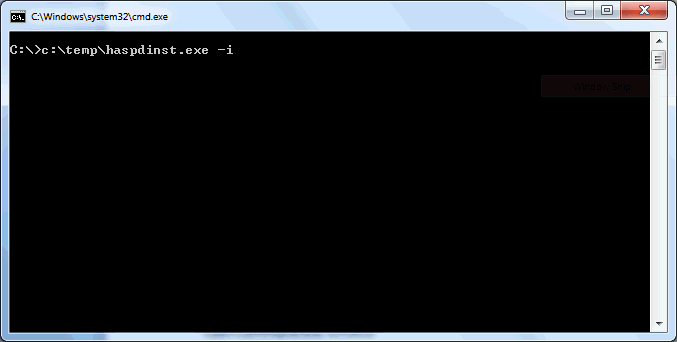
Open the command line window
-
Run the following command <path to>\haspdinst.exe –i
-
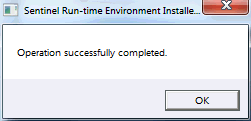
The installation will be completed within few minutes. The following message will then be displayed:
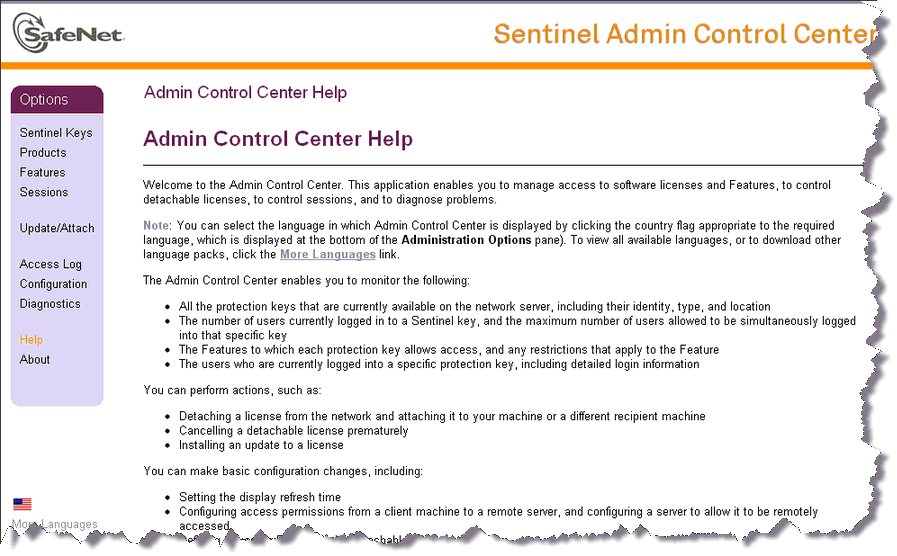
To confirm that Sentinel license service run on the machine, browse to
http://localhost:1947
.
The Sentinel portal
UI should be visible:
Step 2: License Server Activation (Only once step 1 is completed):
-
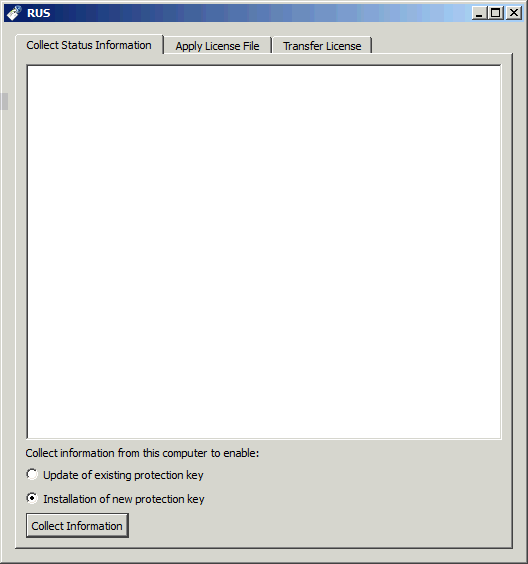
Run the RUS_KYBXC.exe utility. The following window will appear:
-
Under the tab titled “Collect Status Information”, choose “Installation of new protection key” and click “Collect Information”. The utility will present a file chooser dialog for you to store the C2V file on your machine.
-
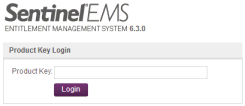
Go to the self-service portal url: https://licactivation.com/ems/customerLogin.html
-
Enter your product key and click "Login".
-
Enter your details and click "Save". This step is optional. You can skip it by clicking “Register Later”.
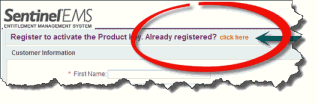
Note: If you already used an E-mail address to register - click on the 'Already registered? click here' link: then insert the registered E-mail address
-
After the registration step, you will be presented with your license details.
-
Use Offline Activation. During offline activation we will use a tool supplied with Silk Mobile to generate a fingerprint of the machine on which it will run. This fingerprint will be uploaded to the self-service portal for the final license activation.
-
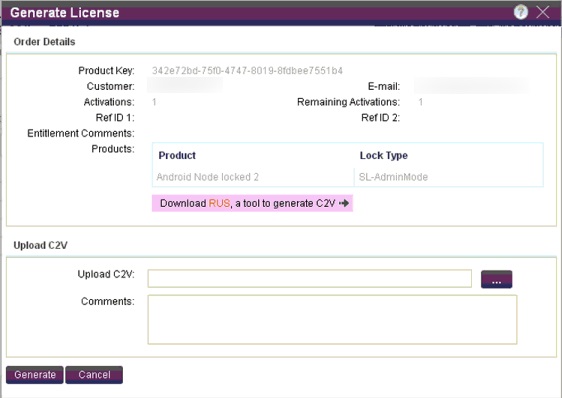
In the self-service portal, click "Offline Activation". You will be presented with the following dialog:
-
Click the button displaying three periods in the “Upload C2V” section. This will let you to upload the previously generated file. After you have selected the file, click "Generate". The portal will upload the C2V file and generate the final license file with extension V2C. Save the file and transfer it to the machine where you have generated the C2V file.
-
In the RUS utility - Go to the “Apply License File” tab, insert the path of the .V2C file at the bottom and click “Apply Update”
-
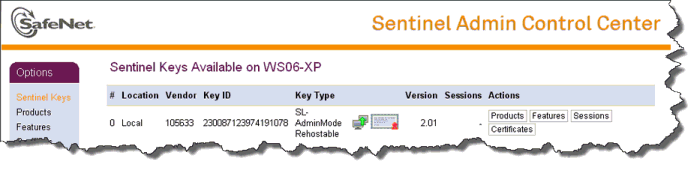
V erify the license by browsing http://localhost:1947 and navigating to “Sentinel Keys” . You will see the following screen:
-
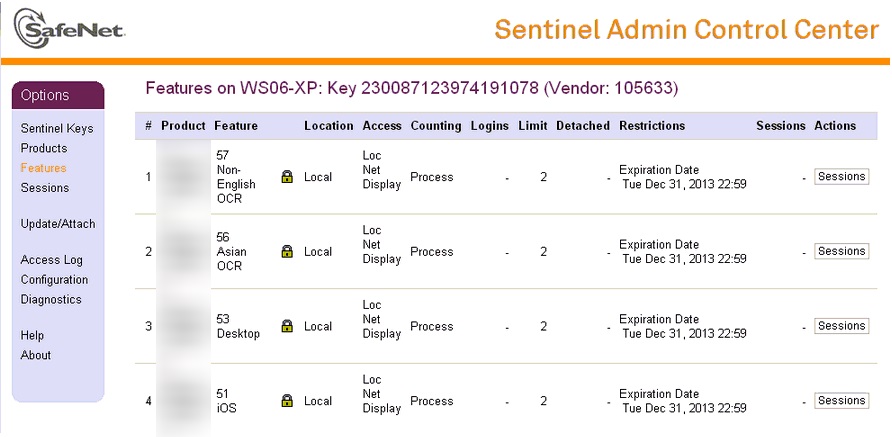
To view the number of licenses you have, click on the Features button in the screen above. You will see the following window with the license information relevant to your organization:
PHASE II: Using a seat from the floating license server in the User machine
Step 1: Download and install the latest Silk Mobile version.
Step 2: Open Silk Mobile and go to Help->License Information. The user will get the following window:
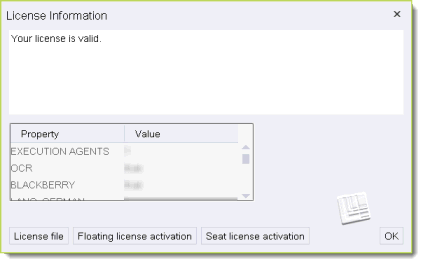
Step 3: Click on “Activate Floating License”. The user will see the following pop-up:
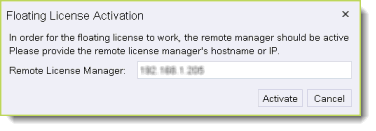
Step 4: In the pop-up dialog the user should enter IP of the machine on which the license server was installed (the machine in Phase I above). Then click the "Activate" button.
Step 5: Silk Mobile will reopen in order for the license to get into effect.
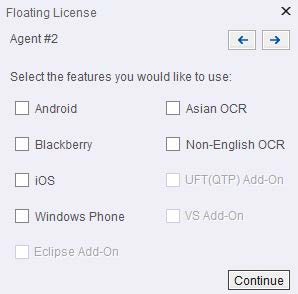
Step 6: Choose the features you wish to use on your computer (according to the floating license availability).